What FrameWipe can do
Six tools for cleaning up photos and video. Each one shows you what it found, lets you correct it, and saves the result as a new file.
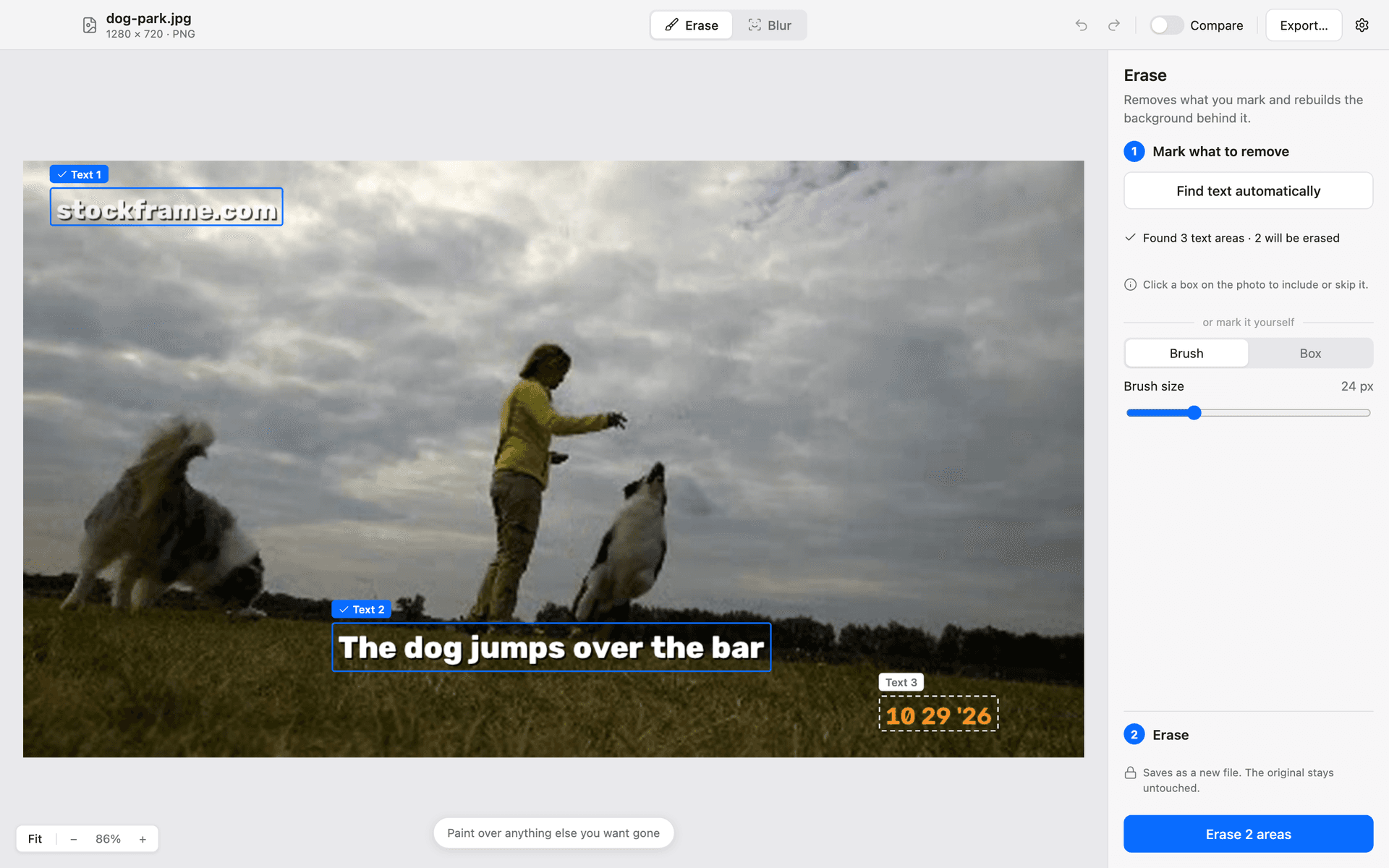
Remove text and clutter from photos
Screenshots with captions, signs, labels, a stray cable on the table. FrameWipe scans the photo for text and draws a candidate box around each piece it finds. Click the boxes you want gone, or mark anything else with a brush or a box. It then erases the marked area and fills it with background that fits the surroundings. Two engines are available: Fast (MI-GAN) for quick results, and Quality (LaMa) for harder cases such as large areas or busy textures.
How it works
- Open a photo. Text is detected and boxed automatically.
- Click the boxes to remove, or brush or box-select other areas.
- Pick Fast or Quality, review the result, and save it as a new file.
Good to know
- The filled area is a plausible background, not the original content behind the text.
- The Quality model (about 200 MB) is an optional one-time download.
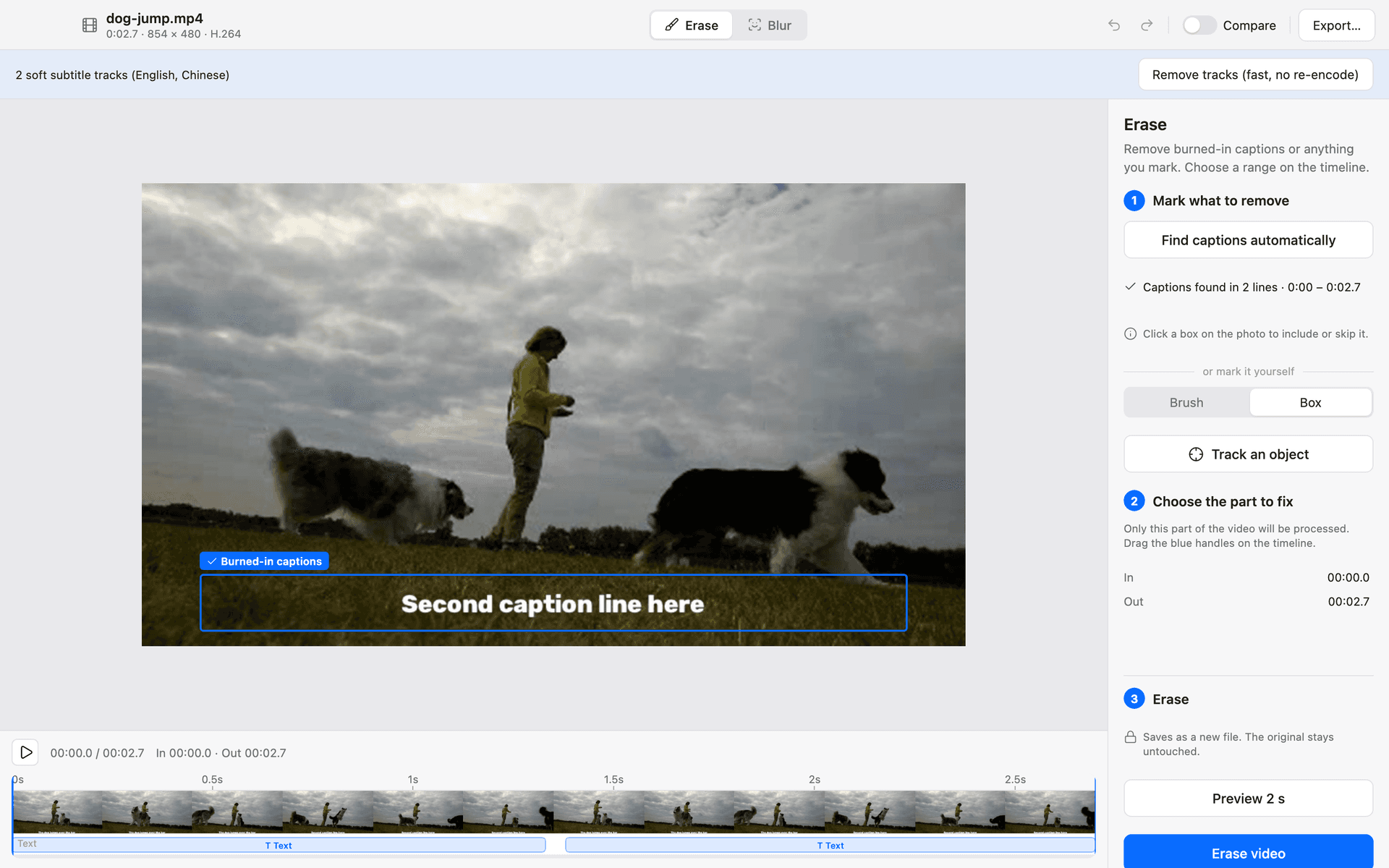
Remove burned-in subtitles and text from video
When subtitles or captions are part of the picture itself, you can't just switch them off. FrameWipe finds where the subtitles sit in the frame, and you choose the time range to clean. Before committing to the whole clip, it renders a 2-second preview so you can judge the result. During processing, it first borrows real pixels from neighbouring frames where the background is visible, then fills whatever is left. You see actual progress as it runs, and you can cancel at any point.
How it works
- Open a video. FrameWipe finds the subtitle area for you.
- Choose the time range and check the 2-second preview.
- Process the range and save the video as a new file.
Good to know
- Where the picture behind the subtitles moves fast or in complex ways, you may see flicker or ghosting.
- Filled areas are reconstructed background, not the footage that was originally hidden.
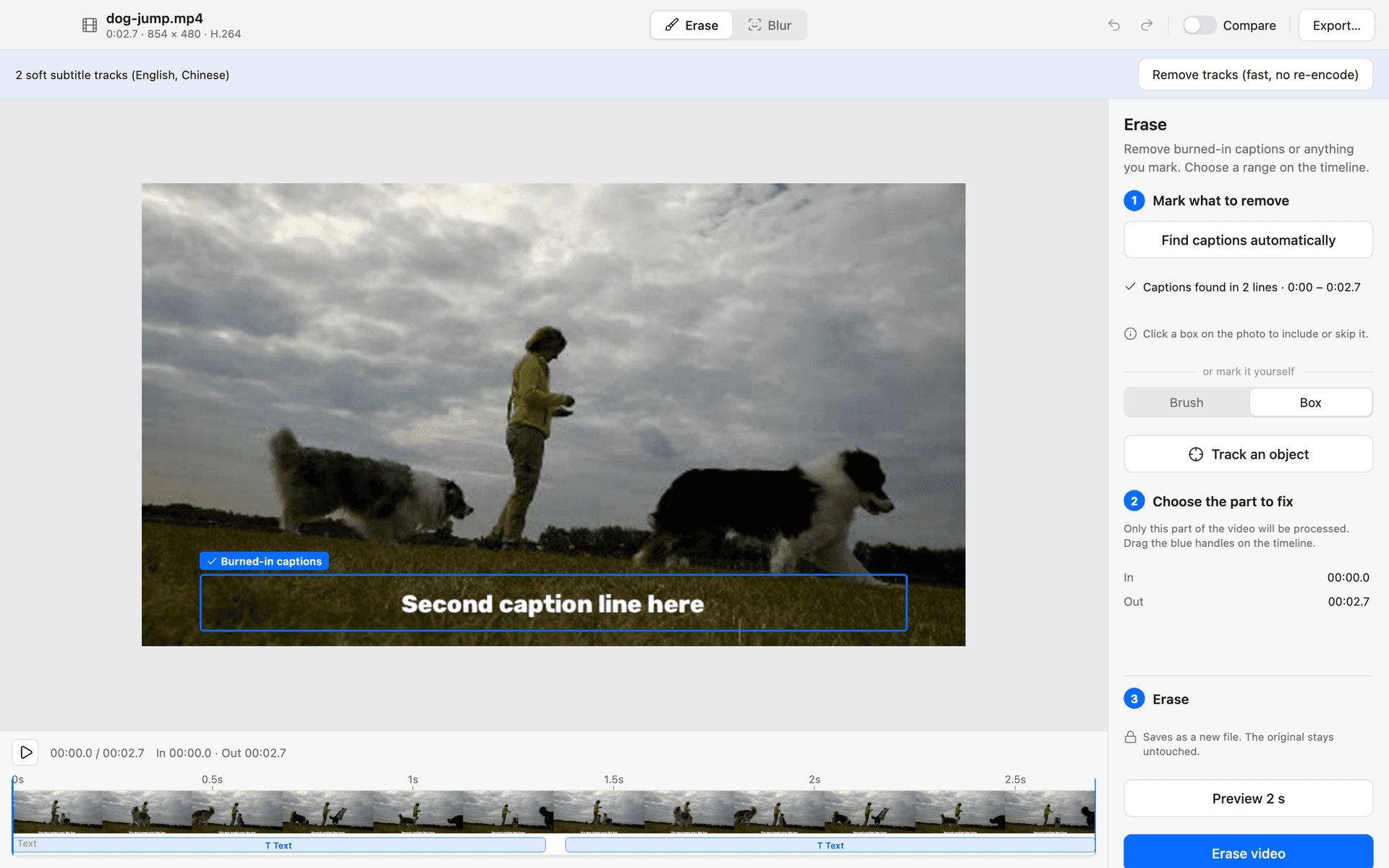
Remove subtitle tracks
Some videos carry subtitles as a separate track rather than as part of the picture. These are often called soft subtitles, and a player can turn them on or off. If you want a file without them, FrameWipe removes the track in one click. Because the picture itself isn't touched, there is no re-encoding: the video and audio are kept exactly as they were, and the job finishes quickly.
How it works
- Open a video that contains a subtitle track.
- Choose to remove the track.
- Save the result as a new file.
Good to know
- This only removes separate subtitle tracks. For subtitles drawn into the picture, use burned-in subtitle removal.
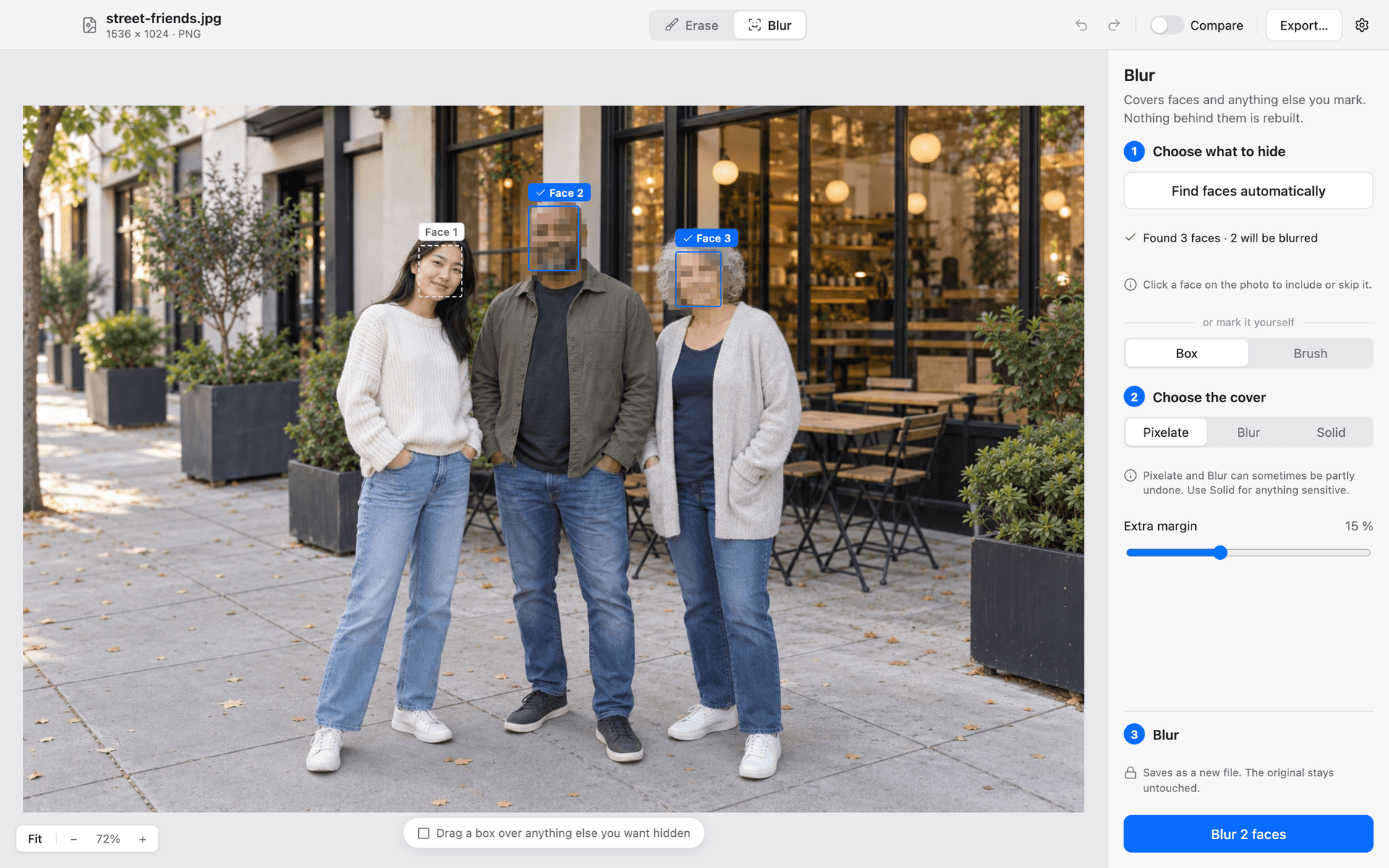
Blur faces in photos
Before you post a group photo or send a picture of a public place, FrameWipe can cover the faces in it. It detects the faces and selects them for you. Click a face to leave it uncovered, or add any it missed by drawing a box or using the brush. Choose how to cover them: pixelate, blur or a solid fill. You can also widen the covered area around each face. Every change shows up in the preview right away.
How it works
- Open a photo. Faces are detected and selected.
- Deselect faces to keep, and box or brush any that were missed.
- Choose pixelate, blur or solid, set the padding, and save as a new file.
Good to know
- Pixelation and blur can sometimes be partly reversed. For sensitive material, use solid fill.
- Very small or partly hidden faces may be missed. Check the preview before saving.
Blur faces in video
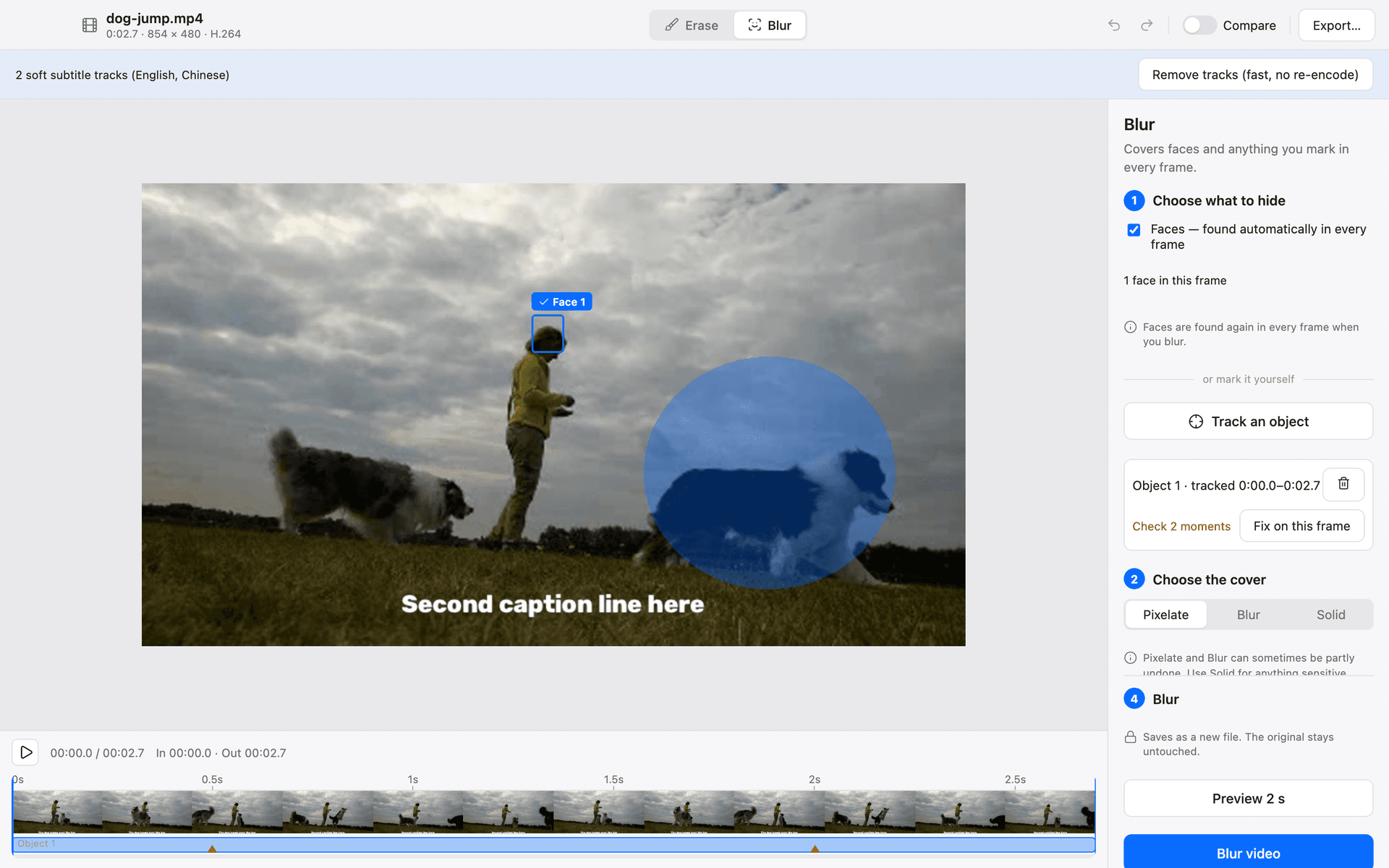
Covering faces in video means covering them on every frame, not just the ones you happen to check. FrameWipe runs face detection on each frame of the clip. Afterwards it lists the moments where a face may have been missed, for example when someone turns away or passes behind an object. Jump to each moment, look at the frame, and draw a box where one is needed. Then export the cleaned-up clip.
How it works
- Open a video. Faces are detected frame by frame.
- Review the list of possible misses and add boxes where needed.
- Check the result and save the video as a new file.
Good to know
- Detection can miss very small or partly hidden faces. Go through the review list before you export.
- Pixelation and blur can sometimes be partly reversed. Where a solid fill is available, it is the safer choice for sensitive footage.
Track and remove or cover an object in video
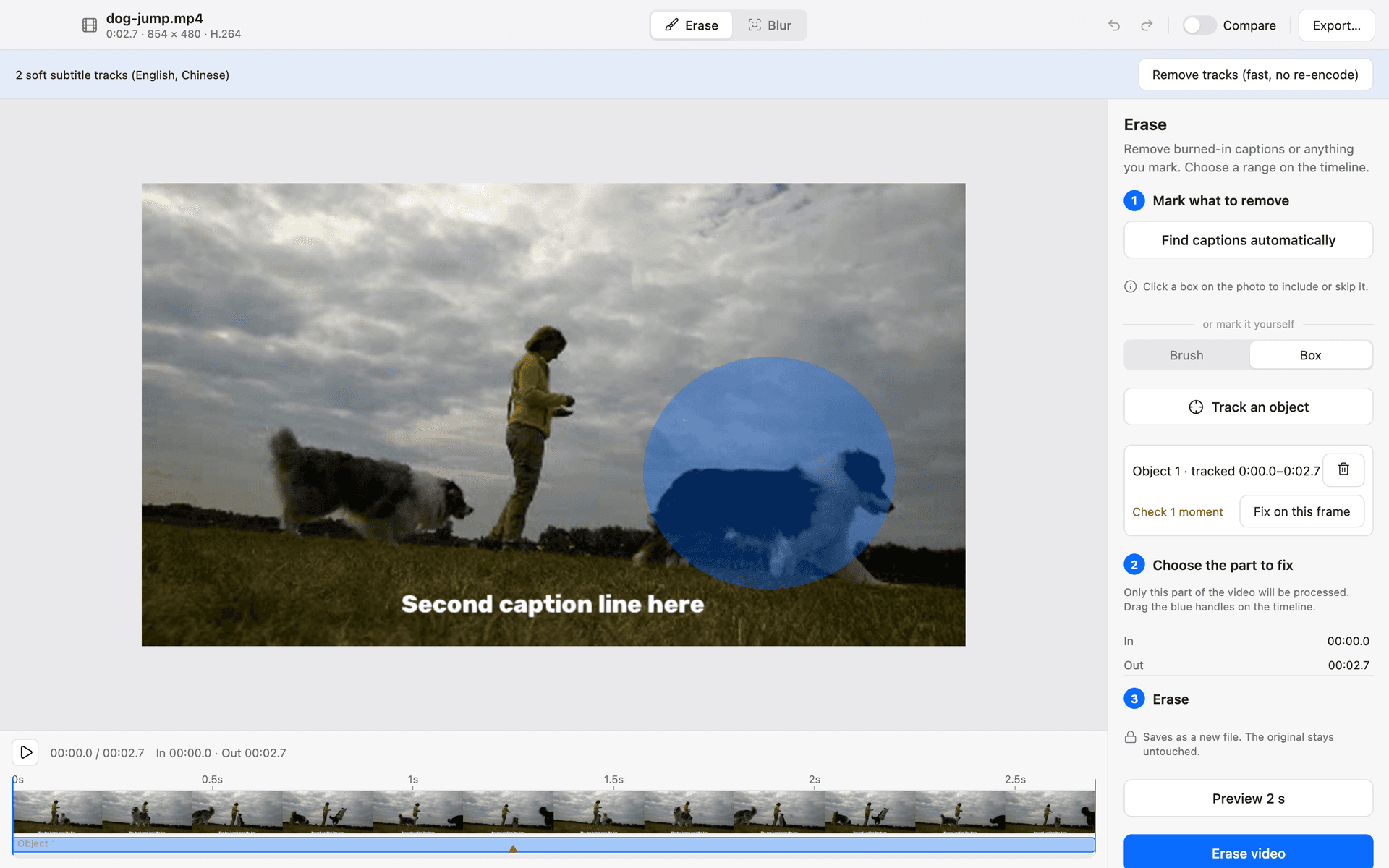
Sometimes the thing you need to deal with isn't text or a face: a license plate, a logo on a shirt, a screen in the background. Draw a box around it on one frame, and FrameWipe tracks it through the following frames. You can then remove it from the video or mask it. Frames where the tracker lost the object are flagged, so you can go to that frame and correct the box.
How it works
- Pause on a frame and draw a box around the object.
- Let FrameWipe track it, then fix any flagged frames.
- Choose to remove or mask it, and save the video as a new file.
Good to know
- Object tracking needs an extra tracking component on Mac only (about 390 MB zip), installed from Settings. Windows does not support object tracking yet.
- Removal fills in plausible background and may flicker where the scene moves in complex ways.